How to Send Contacts From One Phone to Another 2025
How to Send Contacts From One Phone to Another
There’s something oddly emotional about switching phones.
Maybe it’s excitement… maybe anxiety… perhaps a mix of both.
I still remember the moment my uncle bought the new phone, an upgrade he had been delaying for years. He unboxed it like a kid opening a toy, but within minutes, his smile faded.
I can transfer photos, no problem. But these numbers… I can’t lose them.”
He wasn’t being dramatic. Those 800+ contacts represented business leads, family members, old friends, delivery guys, electricians, doctors… basically, life.
And honestly, his panic is far more common than people admit.
Most folks think transferring contacts is simple—until they actually try.
Different phones, different brands, different operating systems, different apps… and suddenly you’re knee-deep in settings you didn’t even know existed.
So today, I’m giving you the most complete, convenient, experience-based guide on how to send contacts from one phone to another, whether you’re switching from Android to iPhone, iPhone to iPhone, Android to Android, or even old-school feature phones.
This isn’t a robotic checklist.
This is a real-world guide, built from real situations, honest mistakes, and real insights.
Let’s start.
Table of Contents
Understanding Real Search Intent (Why You’re Here)
When someone searches “how to send contacts from one phone to another”, they’re almost always trying to solve one of these problems:
Moving to a new phone
(“What is the process for moving contacts to my new phone?”)
Sending one or two contacts to someone else
(Fast sharing with family, boss, colleague)
Backing up contacts in case of phone damage
(Much more common than you think)
Combining contacts from multiple phones
(Parents + children, work + personal)
Fixing sync issues
(Google/iCloud not working correctly)
This article covers everything competitors conveniently leave out.
And we’ll do it the way humans learn best with stories, examples, and explanations that actually make sense.
The Most Reliable Ways to Send Contacts From One Phone to Another
Below, we’ll explore every primary method, matched with scenarios where they shine, so you don’t just know how, but also when to choose which method.
Method 1: Send Contacts Using Google Account (Android-to-Android)
Best method for Android users switching to a new phone.
Let’s start with the technique I trust most: Google Sync.
Why is this the BEST method?
- Zero risk of losing contacts
- Sync happens automatically
- transfers the complete address book, including notes and email addresses.
- Works even if phones aren’t physically nearby
How to Send Contacts Using Google Sync
On the old Android phone:
- Open Settings
- Tap Google
- Select your Gmail account
- Turn on Sync Contacts
Within seconds, all your contacts move to Google’s cloud.
On the new Android phone:
- Log in with the same Google account
- Enable Contacts Sync
Boom. Your entire contact list appears automatically.
This solves the question many users ask:
“How can I transfer contacts to my new phone without losing anything?”
Common Mistakes People Make
Many users save contacts on the device storage, not Google.
Those contacts won’t sync.
Quick fix:
Open Contacts → Select All → Move to Google Account.
Done.
Method 2: Using iCloud (iPhone-to-iPhone Transfer)
If you’re an iPhone user wondering how to send contacts from one phone to another, Apple has made the process unbelievably smooth.
Steps to send contacts using iCloud:
On your old iPhone:
- Settings
- Tap your Apple ID
- Select iCloud
- Turn on Contacts
On your new iPhone:
- Sign in with the same Apple ID
- Enable Contacts Sync
Within seconds, all contacts appear.
Pro Tip:
Turn on iCloud Backup → Backup Now before switching devices.
This avoids sync delays.
Method 3: Android to iPhone (Google Sync Method)
This is where people get confused.
You’re switching from Android to iPhone and thinking:
“How can I easily move contacts to my new phone?”
Good news: iPhone supports Google Sync too.
Steps:
- On iPhone, go to Settings
- Tap Mail → Accounts → Add Account
- Select Google
- Sign in
- Enable Contacts
Done. Your Android contacts appear instantly on iPhone.
Alternate Method
Use the Move to iOS app (official Apple tool).
It transfers:
- Contacts
- Messages
- Photos
- Videos
- Calendars
Method 4: iPhone to Android Transfer (Less Known but Easy)
Many articles skip this or make it unnecessarily complicated.
But transferring contacts from iPhone → Android is actually simple.
Method 1: Use Google Sync
- On iPhone, open Settings → Contacts
- Tap Accounts → Add Account
- Choose Google
- Sign in
- Toggle Contacts ON
Now, on your Android:
- Log in to the same Google account
- Sync contacts
Done.
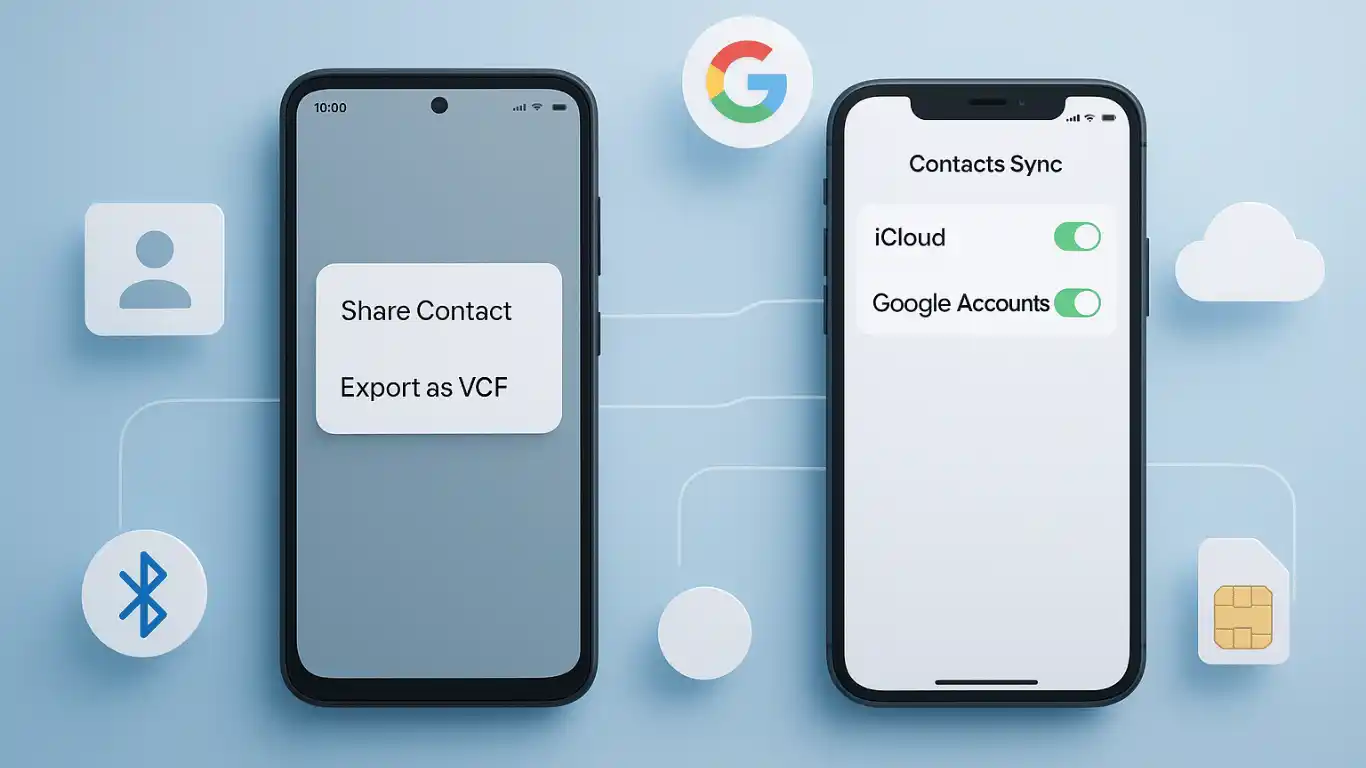
Method 2: Export VCF from iCloud
- Go to iCloud.com
- Click Contacts
- Select all → Export vCard
- Send file to Android
- Import into the Contacts app
Method 5: Using Bluetooth (Old-School but Works)
This works even on a keypad (feature phones).
Steps:
- Open Contacts
- Select the contact(s)
- Tap Share → Bluetooth
- Choose the receiving device
- Accept the file on the other phone
Perfect for:
- Sending a small number of contacts
- Phones without internet
- Older devices
Method 6: Share as VCF (The Most Universal Method)
If you want to send contacts manually, this is perfect.
A VCF file is like a digital visiting card.
Steps:
- Open Contacts
- Tap Manage Contacts / Export
- Select Export as VCF
- Send via:
- Bluetooth
- Telegram
- AirDrop
- Gmail
On the other phone:
- Open the VCF file → Tap Import
Done.
Method 7: Using SIM Card (Useful, but Limited)
This method is old-fashioned, but it still works.
Steps:
- Open Contacts
- Tap Export to SIM
But here’s the issue:
SIM cards can store only 100–250 contacts.
Also, they don’t save:
- Photos
- Email IDs
- Notes
- Multiple numbers per contact
So use this only as a backup.
Method 8: Send Contacts Through WhatsApp / Messaging Apps
This is the fastest way to send a single contact to someone else.
Steps:
- Open the contact
- Tap Share Contact
- Choose WhatsApp → Recipient
They receive the contact as a card that they can save instantly.
Method 9: With Apps Like SHAREit, Xender (Android Only)
These apps transfer:
- Contacts
- Photos
- Videos
- Apps
- Files
SHAREit was very popular before it was banned in some countries.
But many alternatives still work.
Real-World Examples People Ignore (But You Should Know)
Example 1: My friend lost all contacts after switching phones
He only saved contacts on phone storage, not Google.
When his old phone broke, everything was gone.
Lesson:
Always save contacts to Google or iCloud.
Example 2: Mom kept duplicate contacts after transferring
She used multiple transfer methods—Google+, SIM, and VCF—creating triple duplicates.
Fix:
Go to Google Contacts and select Merge & Fix.
Example 3: A Business owner needed to share 200 contacts with staff
He exported a VCF file and shared it via WhatsApp.
Simple and effective.
Example 4: A student transferred contacts from a broken phone
We used Google backup + factory reset recovery
(Yes, Google still restores from the cloud even if the phone is damaged.)
Expert Tips (Nobody Else Tells You)
Tip 1: Never save contacts in phone storage
Always choose Google or iCloud.
Tip 2: Clean up duplicates before transferring
Saves hours of sorting later.
Tip 3: Export a VCF backup every few months
Keeps you safe from accidental loss.
Tip 4: For business contacts → Use Google Contacts Labels
You can categorize:
- Clients
- Family
- Colleagues
- Vendors
Then export specific groups.
Tip 5: Always check sync status
If Contacts Sync is stuck:
- Turn sync OFF
- Turn back ON
- Restart phone
- Check internet
Unique Insights Competitors Never Mention
Insight 1: Contacts linked to Messenger/WhatsApp aren’t “real” contacts
Deleting your messaging apps can delete temporary contacts.
Insight 2: Some Android phones store contacts inside app-level permissions
Especially brands like Xiaomi or Oppo.
Insight 3: New phones sometimes hide your contacts
Not lost, just filtered.
Fix:
- Open Contacts
- Tap Filters
- Enable All Accounts
Insight 4: QR code sharing is the fastest method for one-to-one exchange
Both Android and iPhone now support QR contact sharing.
Final Step-by-Step Cheat Sheet
If you want to transfer everything:
- Android → Android: Google Sync
- iPhone → iPhone: iCloud Sync
- Android → iPhone: Move to iOS
- iPhone → Android: Google Sync
If you want to send a few contacts:
- WhatsApp sharing
- VCF sharing
- QR code
If phones are far away:
- Google/iCloud sync
- Email the VCF
If the phone is broken:
- Restore cloud backups
- Export contacts from the Google account
Conclusion
Switching phones used to feel overwhelming.
Today, it’s almost magical that your entire digital life moves with you in minutes.
But contacts… they’re personal. They hold history. Emotion. Relationships.
And losing them feels like losing a part of life.
The good news?
With the proper method, and now you know every technique, there’s almost zero risk of losing anything.
Whether you’re learning how to send contacts from one phone to another for yourself or helping a family member like I helped my uncle, remember this:
You’re not just transferring numbers.
You’re transferring memories, connections, and pieces of your story.
And now, you can do it confidently.
FAQs
1. How can I transfer contacts from one phone to another instantly?
Use VCF sharing or WhatsApp share. It’s the fastest for small transfers.
2. What is the easiest way to send all contacts to my new phone?
Android → Android = Google Sync
iPhone → iPhone = iCloud
3. Can I send contacts without internet?
Yes. Use:
Bluetooth
Share via SIM
Offline apps like SHAREit (if supported)
4. Does sending contacts delete them from the old phone?
No. Transferring copies of them. Nothing gets deleted.
5. How do I transfer contacts from a broken phone?
Log in to your Google or iCloud account on a new device.
Contacts will appear automatically.
6. Why are only some contacts showing on my new phone?
Because only certain accounts are synced.
Fix by enabling All Contacts → All Accounts in filters.
7. Can I send contacts from Android to iPhone?
Absolutely. Use Google Sync or Move to iOS.
8. What if my contacts appear duplicated on the new phone?
Use Merge & Fix in Google Contacts
or Merge Contacts in iPhone settings.
9. Is SIM card transfer safe?
Yes, but very limited. SIMs hold only 100–250 contacts.
10. Can I share contacts using a QR code?
Yes. Both Android and iPhone now support contact QR sharing.