How to Connect Printer to iPhone Easily AirPrint, WiFi, USB Guide 2025
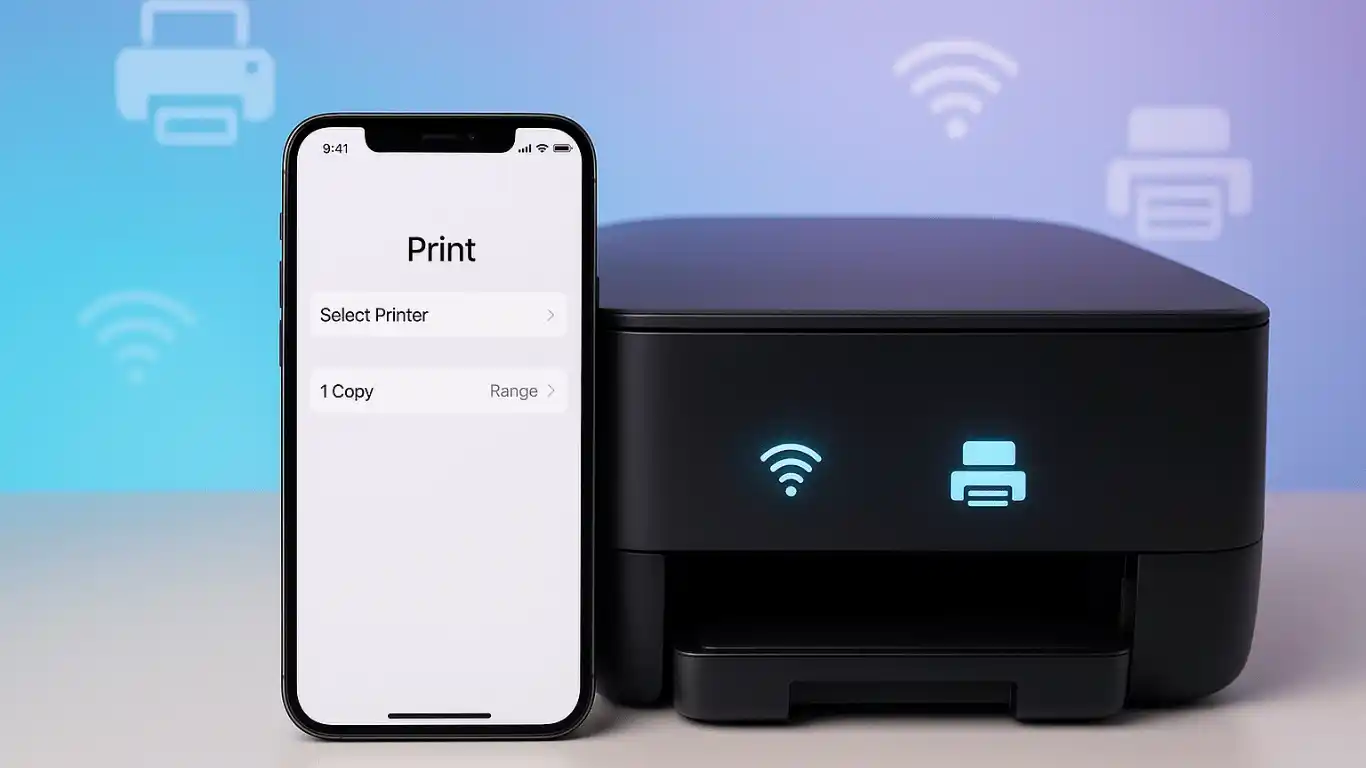
How to Connect Printer to iPhone
There’s a moment almost every iPhone user knows too well.
Contents!
- How to Connect Printer to iPhone
- Understanding How iPhone Printing Actually Works (The Real Explanation)
- 1. Why is my iPhone not finding my Printer?
- 2. How do I add a printer to my iPhone manually?
- 3. Does iPhone support USB printing?
- 4. Do I need the Printer’s app?
- 5. How do I check if my Printer is AirPrint compatible?
- 6. Can I print without WiFi?
- 7. Does connecting the Printer to the iPhone work without the internet?
- 8. Can I connect multiple printers to my iPhone?
- 9. Why does my printer show but not print?
- 10. Can I print emails, PDFs, photos, and web pages?
You’re late. You need to print a ticket, a form, an invoice, anything, and you catch yourself muttering,
“Why is it so hard to figure out how to connect a printer to my iPhone?”
I’ve been there. Standing in front of a blinking printer, WiFi symbol flashing like a taunt, desperately refreshing my iPhone screen, hoping the “Select Printer” option would magically show something other than… nothing.
But here’s the truth no one tells you:
Connecting a printer to an iPhone is actually simple once you understand how it works.
The problem isn’t you. The problem is that the internet is filled with vague, outdated, incomplete instructions that ignore the real-world pain points.
This guide fixes all of that.
I wrote this from real experience devices that refused to appear, AirPrint printers that should have worked but didn’t, routers that randomly blocked communication, old models that required workarounds, and yes… that one time I tried printing a file via email because nothing else worked.
By the end of this guide, you’ll know exactly how to connect a Printer to iPhone in every possible scenario, AirPrint or not, WiFi or not, new or old Printer with steps, screenshots (explained), examples, mistakes, and fixes nobody else is mentioning.
Let’s get into it.
Understanding How iPhone Printing Actually Works (The Real Explanation)
Before I walk you through the steps, you need the single biggest insight:
Your iPhone does not install printer drivers the way a computer does.
It relies on one of these four methods:
1. AirPrint (best, easiest, default)
Apple’s built-in printing system.
No apps. No cables. No drivers.
2. WiFi Direct (Printer broadcasts its own network)
Great when there is no WiFi router.
3. Printer apps (Canon, HP, Epson, Brother, etc.)
Works for non-AirPrint printers.
4. USB cable + adapter (yes, you can physically connect)
An underrated method most people don’t even consider.
This is why people search:
- how to connect Printer to iPhone
- how to add a printer to my iPhone
- how to install Printer on iPhone
- how do you add a printer to your iPhone
- how can I add a printer to my iPhone
…but don’t get precise instructions.
This guide gives you all four options.
How to Connect Printer to iPhone Using AirPrint (Fastest Method)
Let’s start with the simplest and most common: AirPrint.
If your Printer says “AirPrint-compatible,” “Apple AirPrint,” or shows a little Apple logo on the box, this is your method.
Steps: How to Connect Printer to iPhone via AirPrint
- Connect your iPhone to the same WiFi network as the Printer.
- Devices must share the same network, which is the most common error individuals make.
- On your iPhone, open the file or image that you wish to print.
- Open the document/photo you want to print on your iPhone.
- Tap Share → Print.
- Tap Select Printer.
- Choose your Printer from the list.
- Set number of copies, color, duplex, etc.
- Tap Print.
That’s it.
Real Example: When Your Printer Doesn’t Show Up
A friend once called me saying:
“I know how to connect to a printer on iPhone, I’ve done it before, but suddenly the Printer isn’t showing up. Is it broken?”
No.
This usually means one of five things:
- iPhone and Printer are on different networks (e.g., 2.4 GHz vs 5 GHz).
- Printer WiFi is ON, but not connected.
- The Printer went into “sleep mode” (standard with Epson).
- Router blocked mDNS (AirPrint uses mDNS discovery).
- Printer firmware is outdated.
Fixes nobody mentions:
- Restart the Printer (wakes it from network sleep mode).
- Restart your router’s multicast settings (hidden in the admin settings).
- Update printer firmware via its app.
After doing these, 99% of printers magically appear again.
How to Add a Printer to My iPhone That Isn’t AirPrint.
Sometimes your Printer is older. Or cheaper. Or simply not AirPrint-enabled.
That’s okay, your iPhone can still print.
You use the Printer’s official app.
Here’s how to add a printer to your iPhone using apps.
Connect Printer to iPhone Using HP Smart App.
- Install HP Smart from the App Store.
- Turn on Printer → enable WiFi Setup Mode.
- Open the app → tap Set Up a New Printer.
- Select Printer → connect to WiFi.
- Print directly from the app.
Connect Printer to iPhone Using Canon PRINT Inkjet/SELPHY.
- Download the Canon PRINT app.
- Press the WiFi button on the Printer.
- iPhone → WiFi → connect to Printer’s temporary network.
- App detects Printer → configure WiFi.
- Start printing.
Connect Printer to iPhone Using Epson iPrint
- Download Epson iPrint.
- Enable WiFi Direct on the Printer (Epson loves this).
- Open app → printer appears instantly.
- Print.
Connect Printer to iPhone Using Brother iPrint&Scan.
- Install the Brother app.
- Tap Add Printer.
- Choose WiFi, WiFi Direct, or Mobile Print.
- Done.
Real Story: When Someone Tried “Connecting a Printer to iPhone” Without Its App
A colleague once spent 30 minutes trying to find “Select Printer” on her iPhone, only to realize her Printer didn’t support AirPrint.
No matter what she did, the Printer would never show up.
I installed the manufacturer app, connected it in 2 minutes, and she looked at me like I had performed magic.
Moral:
If your Printer doesn’t support AirPrint, use the app. Don’t fight the system.
How to Connect an iPhone to a Printer Using WiFi Direct
This is the method that saves people when:
- You don’t have WiFi
- You’re in a hotel
- You’re at a client’s office
- You’re using someone else’s Printer
WiFi Direct lets the printer act like its own hotspot.
Steps
- Turn on Direct WiFi (WiFi Direct) on the Printer.
- Open Settings → WiFi on iPhone.
- Connect to the Printer’s WiFi network (the password is often printed on a sticker).
- Open file → Share → Print.
- Select printer → Print.
Done.
How to Add a Printer to Your iPhone Using USB (YES, It Works!)
Most blogs ignore this.
But many users search:
- how to install Printer on iPhone
- how can I add a printer to my iPhone
- how do you add a printer to your iPhone
…and nobody talks about USB.
You need:
- A Lightning to USB Camera Adapter (for older iPhones)
- OR a USB-C to USB Adapter (newer iPhones)
- Standard printer USB cable
Steps to connect:
- Plug the USB cable into the Printer.
- Plug the other end into the adapter, then into the iPhone.
- iPhone auto-detects a Printer if compatible.
- Print using Share → Print.
Not all models support USB printing, but many HP and Canon ones surprisingly do.
Advanced Insights (The Stuff That Actually Matters but Nobody Writes About)
1. Your Printer must support “Bonjour.”
AirPrint relies on Bonjour/mDNS discovery.
If your router blocks multicast, your Printer won’t appear.
2. Dual-band routers cause chaos
If your iPhone is on 5 GHz and your Printer is on 2.4 GHz, detection sometimes fails.
3. VPN blocks AirPrint
Many people forget they have a VPN turned on.
Please turn it off.
4. Guest WiFi mode won’t work
Guest networks isolate devices.
AirPrint cannot see the printers there.
5. Restarting the router is often the real fix
More than half the time, reconnecting the router solves everything.
Common Mistakes People Make (And How to Avoid Them)
Mistake #1: Printer not connected to the same WiFi
Solution: Put both devices on the identical SSID.
Mistake #2: Printer WiFi light blinking
This means it’s not connected yet.
Finish the setup using its control panel.
Mistake #3: Using the wrong app
Canon uses Canon PRINT, not HP Smart.
HP printers require HP Smart, not Brother.
Mistake #4: Ignoring firmware updates
Modern printers push AirPrint support in updates.
Mistake #5: Trying to pair via Bluetooth
iPhones do not print via Bluetooth (exceptions: thermal POS printers).
Complete Step-by-Step Summary (For Quick Reference)
Here’s everything about how to connect Printer to iPhone in one place:
AirPrint:
- Same WiFi → Share → Print → Select Printer.
Non-AirPrint:
- Install app → Connect → Print.
WiFi Direct:
- Connect to printer hotspot → Print.
USB:
- Use adapter → Connect → Print.
Bluetooth:
- Only works for thermal receipt printers.
FAQs
1. Why is my iPhone not finding my Printer?
Usually, because the Printer isn’t on the same WiFi or is in sleep mode, restart both devices.
2. How do I add a printer to my iPhone manually?
You can’t manually “add” like a PC, but you can connect using AirPrint or the manufacturer’s app.
5. How do I check if my Printer is AirPrint compatible?
Look for the “AirPrint” logo on the box or type “AirPrint” together with the model of your printer.
7. Does connecting the Printer to the iPhone work without the internet?
Yes. WiFi Direct and USB don’t require an internet connection.
8. Can I connect multiple printers to my iPhone?
Yes, AirPrint automatically lists all available ones.
Conclusion
Learning how to connect a Printer to an iPhone isn’t just a tech task; it’s a small moment of control in an increasingly digital world.
Once you understand how iPhone printing actually works, AirPrint, WiFi Direct, apps, and USB, you realize it’s not complicated at all. It’s just different from what we learned on computers.
I’ve troubleshot printers in offices, homes, studios, and even cafes (true story), and the pattern is always the same.
Join the conversation