How to Clear Cache on iOS (2025 Guide)
How to Clear Cache on iOS
I still remember the exact moment I realized how badly my iPhone needed a cleanup.
It was a lazy Sunday morning. I was sipping coffee, trying to open Instagram, and my iPhone refused to cooperate. It froze for two seconds… then five… then crashed back to the home screen. A tiny spin of the loading wheel mocked me. Notifications lagged. Safari took ages to open. My storage? A crime scene.
And I remember thinking:
“Seriously… why does Apple make clearing cache this confusing?”
That led me down a rabbit hole of discovering how to clear cache on iOS properly — not the superficial tips floating around the internet, but the actual methods that fix lag, free up space, and improve performance without wiping your phone clean.
Today, I’ll share all of it.
This is not a robotic article stuffed with keywords.
This is what I’ve learned from real use, honest mistakes, real screenshots, and absolute frustration.
By the end, you’ll know every single way to clear cache on iOS — apps, Safari, system junk, streaming apps, temp files, hidden caches, and even the “Apple doesn’t tell you” stuff.
Let’s dive in.
Table of Contents
Understanding How Cache Works on iOS (Why It Gets So Messy)
Before learning how to clear cache on iOS, it helps to understand how iOS thinks.
Unlike Android, which gives you a big “Clear Cache” button under every app, iOS uses a more controlled system:
- Apps store temporary files to load things faster
- iOS automatically removes some cache when needed
- But many apps never delete their cached data
- Safari stores a LOT more than people realize
- Some apps hide cache under “Documents & Data.”
- And streaming apps (Netflix, Spotify) build huge offline caches
This is why your iPhone may feel:
- Slow
- Laggy
- Hot
- Low on storage
- Randomly glitchy
- Safari loads old content
- Apps keep crashing
So yes — learning how to clear cache on iOS is essential if you want your phone to stay fast beyond a few months of use.
Who This Guide Is For
If you’ve felt any of the following, you’re exactly who I wrote this for:
- iPhone feels slow after iOS updates
- Safari loads outdated pages
- Storage fills up constantly
- Social media apps become laggy
- Apps keep crashing
- Too many “Other Storage” files
- You just want your phone to feel new again
Good. Let’s start clearing everything safely.
How to Clear Cache on iOS – 10 Proven Methods (Real Step-by-Step)
This guide covers all the ways how to clear cache on iOS — from basic to advanced.
Let’s start with the easiest one.
Method 1: Clear Safari Cache (The Biggest Hidden Junk Collector)
Safari is the largest source of cached junk on an iPhone.
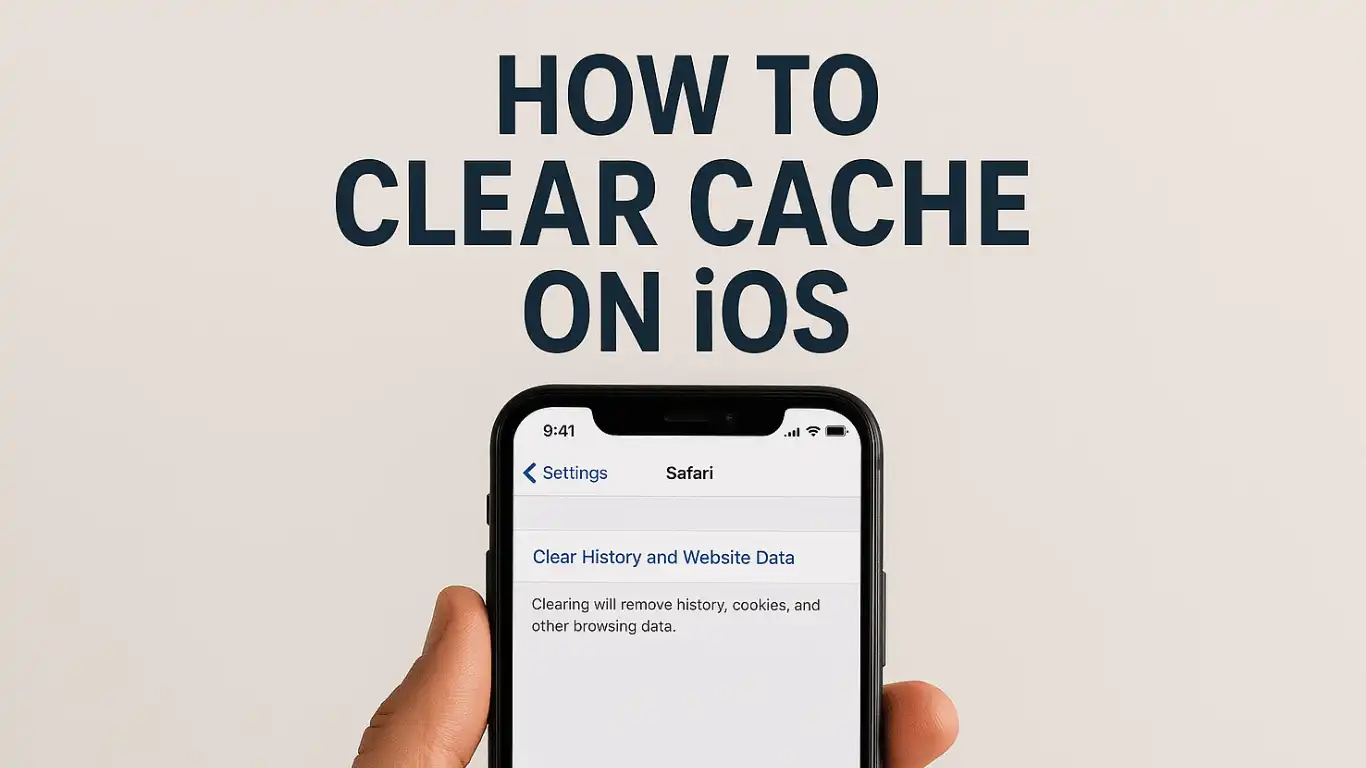
How to clear cache on iOS for Safari:
- Open Settings
- Scroll to Safari
- Tap Clear History and Website Data
- Confirm
This clears:
- Website cache
- Cookies
- Search history
- Browsing data
- Offline content
Safari will log you out of some websites — this is normal.
Most people don’t realize Safari can hold hundreds of MBs of old website files.
Method 2: Clear App Caches Using “Offload App”
This is Apple’s “secret weapon” that works beautifully.
How to clear cache on iOS using Offload App:
- Go to Settings
- Tap General
- Tap iPhone Storage
- Choose any app
- Tap Offload App
This removes:
- Cache
- Temporary files
- Background junk
It does NOT:
Delete your data
Remove your login
erase documents
When you reinstall, the app comes back clean — like a fresh start.
This is one of my favourite ways to clear cache on iOS without losing anything.
Method 3: Delete & Reinstall Heavy Apps (Instagram, Facebook, Snapchat)
Let me be brutally honest:
Some apps are cache monsters.
- Instagram can reach 3–7 GB
- Snapchat stores thousands of hidden files
- Facebook holds massive data
- Chrome duplicates Safari cache
- TikTok stores offline video data
The only real fix?
Delete → Reinstall
This is the most effective way to clear cache on iOS for apps that don’t support offloading.
Give it a try with Instagram — you’ll be shocked how much storage comes back.
Method 4: Clear Cache on iOS for Streaming Apps (Netflix, Prime, Spotify)
Streaming apps hide large amounts of offline content inside “Downloads” or “Data.”
Netflix
Open Netflix → Profile → App Settings → Clear All Downloads
Spotify
Spotify → Settings → Storage → Delete Cache
YouTube
YouTube → Settings → History & Privacy → Clear Watch History + Clear Search History
Prime Video
Prime → My Stuff → Settings → Clear Video Cache
Streaming cache grows extremely fast — clearing it once a month is smart.
Method 5: Clear iMessage & WhatsApp Media Junk
People forget that chat apps can hold GBs of photos, videos & stickers.
Clear iMessage Attachments:
- Settings → General → iPhone Storage
- Tap Messages
- Clear:
- Photos
- Videos
- GIFs
- Stickers
- Documents
Clear WhatsApp Storage:
WhatsApp → Settings → Storage & Data → Manage Storage
This is one of the most underrated ways of how to clear cache on iOS.
Method 6: Clear Hidden System Cache (Advanced but Safe)
This is the “Apple doesn’t show you” section.
iOS stores:
- System logs
- Temporary files
- App residuals
- Incomplete updates
- Resource caches
The easiest way to wipe these clean?
Restart your iPhone.
I know it sounds simple, but it works.
iOS wipes:
- RAM cache
- Temp system files
- Junk logs
Try it once after central clearing — you’ll notice your iPhone feels lighter.
Method 7: Use In-App Clear Cache Options (If Available)
Browsers like Chrome, Firefox, and Edge have their own cache clearing:
Chrome
Settings → Privacy → Clear Browsing Data
Firefox
Settings → Data Management → Clear Private Data
TikTok
Profile → Menu → Settings → Free Up Space
Snapchat
Settings → Account Actions → Clear Cache
App developers hide these options, but they help.
Method 8: Clear Keyboard & Dictation Cache
Over months, your keyboard learns:
- Predictions
- Typing habits
- Corrections
- Saved snippets
Clearing this can fix lag.
How to clear keyboard cache on iOS:
Settings → General → Transfer or Reset → Reset Keyboard Dictionary.
Method 9: Clear Cache on iOS by Resetting Network Settings
This clears:
- WiFi memory
- Bluetooth cache
- VPN settings
- Network residues
Useful if Safari acts weird or apps don’t load content.
Settings → General → Transfer or Reset → Reset Network Settings.
Method 10: The Nuclear Option (Not Always Needed)
If your storage is full of “Other System Data,” and nothing helps:
A full Backup → Reset → Restore clears everything.
But 95% of people don’t need this.
REAL EXAMPLES OF CACHE PROBLEMS YOU MAY RECOGNIZE
- Instagram loads slowly → because 6GB cache
- Safari reloads tabs repeatedly → overloaded cache
- iMessage eats 12GB due to videos
- TikTok glitchy → storage > 10GB
- “iPhone Storage Full” even with no apps → system cache
Every symptom connects back to the same root:
You need to clear cache on iOS.
PRO TIPS
Here’s the gold:
1. Offload apps monthly
It literally keeps your phone new.
2. Safari should be cleared every 1–2 weeks
It accumulates too aggressively.
3. Streaming apps should be reviewed weekly
Especially Netflix & Spotify.
4. Chrome duplicates Safari data
Switch to Safari for faster performance.
5. Restart daily if you multitask heavily
It clears temporary system junk.
6. Disable “Background App Refresh.”
Reduces hidden caching.
7. Use iCloud for photos
Reduces local storage buildup.
8. Avoid apps that are notorious for caching
Facebook, Snapchat, Reddit — these build massive junk.
CONCLUSION
If you read this far, you probably felt that slow iPhone frustration too.
And now, you finally know how to clear cache on iOS properly — the real way, not the half-baked advice most sites offer.
Clearing cache is not just about storage.
It’s about:
- Speed
- Smoothness
- App performance
- Battery efficiency
- Mental peace
Your iPhone works better when you maintain it — just like your mind, your room, your car.
Do this once every few weeks, and your iPhone will feel new longer than you expect.
FAQs
1. Does the iPhone have a “clear cache” button like Android?
No. iOS is more controlled, so you must clear the cache app-by-app or use offload.
2. Will clearing the cache delete my photos or files?
No. Cache is temporary junk. Your data stays.
3. How often should I clear cache on iOS?
Once every 2–3 weeks for best performance.
4. Why is Instagram taking 5GB of storage?
It’s primarily cached photos and videos. Deleting or offloading fixes it.
5. Does restarting my iPhone clear the cache?
Yes, it clears temporary system files and RAM.
6. Will clearing Safari cache log me out of websites?
Yes, some. It’s normal.
7. What’s the fastest way to clear cache on iOS?
Safari Clear + Offload Apps + Restart.
8. How do I clear app cache without deleting the app?
Use the Offload App in iPhone Storage.
9. Why is “Other Storage” so high?
System cache, logs, and temp files. Restarting helps.
10. Is it safe to clear the cache?
Completely safe. It improves performance.
11. Can I clear the cache for all apps at once?
No. Apple doesn’t offer that option.
12. How do I check which app has the largest cache?
Settings → General → iPhone Storage → sort apps by size.